Most People Never Get Claude Past the Chat Box. Here's the 5-Minute Fix.
Most people meet Claude as a chat box and never get past it. That's a shame, because the chat box is the shallowest end of the pool. Used properly, Claude can read your inbox, see your calendar, keep on top of your tasks, learn how you write, and quietly do work for you on a schedule — all without you babysitting it.
The fix is one move: do your work in Cowork, not the plain chat box. Cowork is where Claude can reach your connected accounts, run multi-step jobs, and build tools that stick around. The chat box is for quick questions; Cowork is where it becomes an assistant. Everything in this guide happens there.
This guide walks you through a setup you can actually follow — starting safe and shallow, and peeling back one layer at a time until Claude is genuinely running alongside your week.
The 5-minute version: Open Cowork, switch on the Microsoft 365 and Asana connectors, and type "What's on my calendar today?" That's the whole fix — Claude just went from a chat box to something that can see your actual work. Everything below builds on that, one layer at a time. (New to any of the words? There's a plain-English glossary at the bottom.)
What Claude can and can't do here
Worth being clear up front, because it shapes everything below.
Claude can read everywhere. With the Microsoft 365 and Asana connectors switched on, it can search and read your email, see your calendar and work out your availability, and read your tasks and projects.
Claude reasons and suggests. It can triage your inbox, find meeting times, work out what to prioritise, and write a suggested reply in your own voice.
You stay in control. Claude won't send an email, create a draft in Outlook, or send a calendar invite — you take that last step yourself. The rhythm is always: Claude reads and prepares, you approve and send.
The setup — peel back the onion
Open Cowork — that's the surface every prompt below is run in. The trick is not to do everything at once. Start with the safe, read-only stuff, prove to yourself it works, and only hand over more as your trust grows. Six layers, each one a win on its own.
Layer 1 — Let it see your world
Turn on the connectors (Microsoft 365 for email and calendar, plus Asana), then ask a few read-only questions just to watch it work:
Nothing here can go wrong — Claude is only looking. The point is the small jolt of realising it can see your actual day. Once that lands, the rest makes sense.
Layer 2 — Let it connect the dots
Now ask it to do the thing you'd otherwise do across five browser tabs — pull your surfaces together:
This is where it stops feeling like a search box and starts feeling like an assistant. It's joining up the things you normally join up in your head.
Layer 3 — Teach it your voice
This is the one that changes everything. Get Claude to study how you write, and save it as a skill:
Then test it, and paste the result into Outlook:
Because the suggestion sounds like you, you just copy it across and send — your own words, not a robot's.
Layer 4 — Give it a home base
You've now got Claude reading your world and writing like you. Time to put it all in one place you actually look at. Ask it to build you a personal dashboard — a live tool you reopen through the day rather than asking from scratch each time:
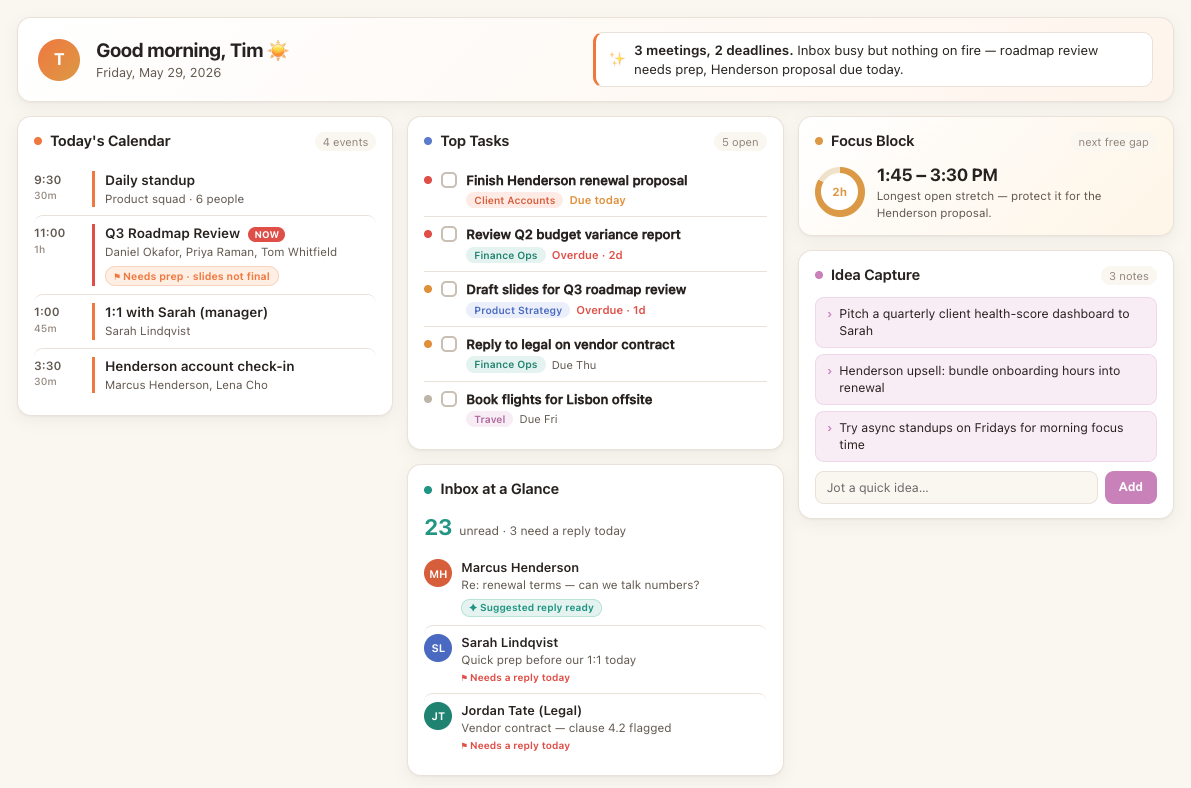
Now there's one place you land instead of starting cold every morning. It reads all three systems and shows you the day, and the one thing it writes back — an idea dropped into your Asana "Ideas" project — goes through the same Asana connector. The free focus block is just surfaced for you to grab; Claude can read your calendar but not edit it, so blocking the time stays your call. (In the next layer, a scheduled task can rebuild this dashboard for you every morning, so it's fresh before you sit down.)
Layer 5 — Set the rhythm
Once it can read everything and knows your format, set up two scheduled tasks for the beats of the week that always slip — a morning brief and a Friday wrap:
These run on their own. You didn't ask — they're just there when you sit down. This is the moment Claude goes from tool to teammate.
Layer 6 — Hand off the real work
By now you've watched it be right a dozen times, so trust it with bigger jobs.
Dispatch a job over your own inbox, then get on with your day:
Cowork through your inbox — Claude reads each thread, suggests a reply in your voice, you paste and send — together, in one sitting.
Add more skills as you notice patterns: your rules for what counts as urgent, or how you like meeting notes turned into Asana tasks.
Where to start
Don't try to build all six layers today. Switch on the connectors, ask it what's on your calendar, and go from there. The whole point of peeling the onion is that each layer is useful on its own — you're never one big setup away from value, you're one small question away.
The technology is genuinely useful. It's most useful when you let it see your work and learn your habits — and that only happens one layer at a time.
A wider menu, once you're set up
Things worth trying across the features, grouped by what they touch:
- Email (read-only): triage by urgency, summarise a long thread into a decision and actions, work out who you're overdue replying to, catch up on everything that mattered while you were on leave.
- Calendar: find three slots for a 30-minute meeting next week, protect a two-hour focus block, spot back-to-backs with no breaks, work out when to move a clashing meeting.
- Asana: what's due this week across all projects, which tasks you've been quietly avoiding, what you actually moved forward this week.
- Ideas: turn a vague thought into a one-line next action, sort a backlog of half-ideas into real projects.
The basics — the words, in one place
You'll see these terms throughout. Here's each one in a sentence.
- Chat — a normal back-and-forth conversation. Ask a question, get an answer, refine it. Best for quick, one-off things.
- Connectors — the switches that let Claude read your real data: your Microsoft 365 email and calendar, and your Asana. Here they're read-only — Claude can see your world, but it won't send, change, or delete anything.
- Artifacts — when Claude builds a thing beside the conversation — a document, a one-pager, a draft — that you can preview and tweak in place, instead of it being buried in the chat.
- Live artifacts (apps) — a small working tool Claude builds that you keep coming back to, like a personal dashboard, rather than a one-off document.
- Cowork — Claude doing a longer, multi-step job with you watching and steering — more like a colleague at your shoulder than a chat reply. This is the home for everything in this guide: it's where your connectors, live artifacts, and scheduled tasks live. If you only take one thing away, it's work in Cowork, not the chat box.
- Dispatch — you send Claude off to do a job on its own and come back to the result later. Fire-and-forget.
- Scheduled tasks — Claude doing something on a repeating timer without being asked, like a brief that lands in front of you every morning.
- Skills — reusable recipes that teach Claude your way of doing things — like how you write emails — so its output always sounds and looks like you.